How to collect marks from teachers with Google Sheets
Updated 24 October 2026
Collecting marks on paper means retyping every one of them, and every retyped mark is a chance for a mistake. Google Sheets lets teachers type marks straight from their phones. Here is a setup that keeps marks safe.
1. One spreadsheet per class and exam
Make one spreadsheet for each class and exam, for example “P.6 Blue – Term II 2026 – End of term”. Keeping exams in separate files means a mid-term mark can never be typed over an end-of-term mark.
2. One tab per subject
Each subject gets its own tab, with a few heading lines (class, subject, exam, out of) and two columns: the learner’s name and the mark. Fill in the names from the class list, in class-list order.
3. Lock what should not change
Protect the headings and the names, so nobody types over them. Then give each subject’s Mark column only to that subject’s teacher. Google Sheets lets you protect a range and choose who may edit it.
4. Stop impossible marks
Add a check to the Mark column: a number from 0 to the “out of” number, A for absent or X for exempted. Show anything else in red, so the teacher sees the mistake at once.
5. Share with each teacher
Share the file with each teacher’s email. Teachers do not need to install anything: the sheet opens in the Google Sheets app or a phone’s browser.
6. Bring the marks in and check them
When the deadline comes, read every tab and check before anything reaches the cards: marks above the “out of” number, learners with no mark, names that do not match the class list, and odd jumps from mid-term. Then save them.
What goes wrong, and how to avoid it
- A teacher sorts the names and the marks no longer match the learners. Locking the names column prevents it; a hidden learner ID column lets you match marks exactly anyway.
- A learner joins late. Add them below the last row, with the same locks.
- A teacher has no Google account. Any email can be turned into one, or the teacher can send marks another way, such as a WhatsApp message in a set format.
Questions schools ask
Do teachers need a computer?
No. Teachers type marks in the Google Sheets app or a phone’s browser.
Can a teacher see other subjects’ marks?
They can open the file, but only their own subject’s Mark column can be changed.
All of this, made for you in one click
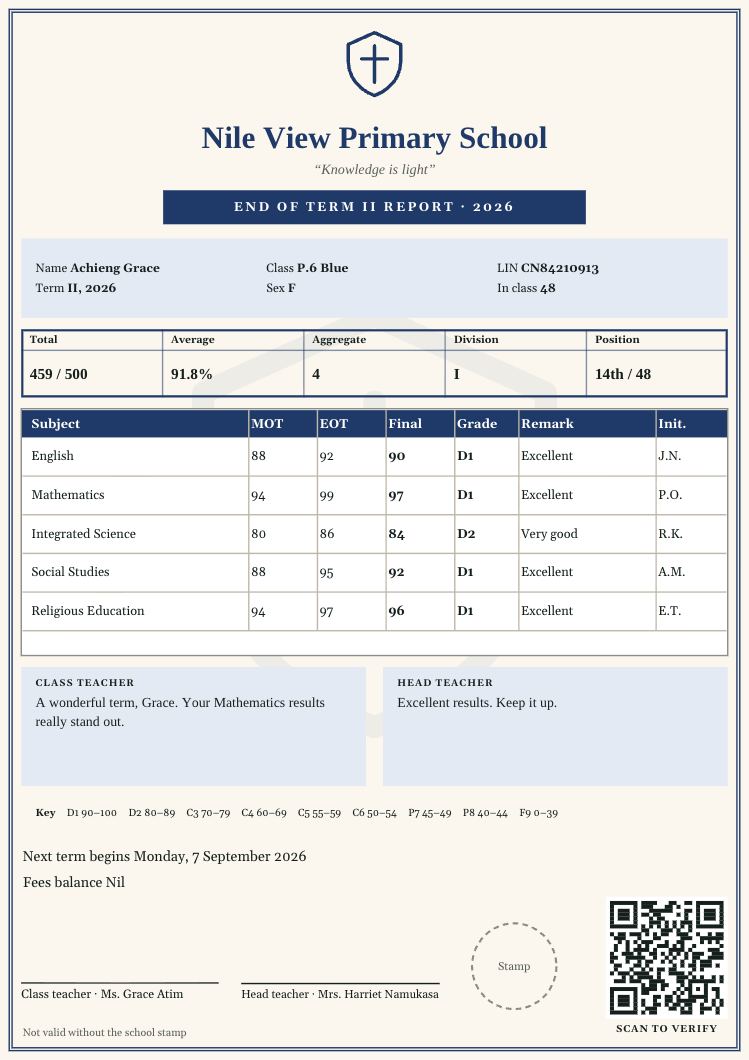
Report Card Studio makes and shares a Google Sheet for every class, with names locked, each Mark column open only to its teacher, and checks for wrong marks. It pulls the marks back and checks them before anything reaches the cards. Free until you print.
Questions? Call or WhatsApp 0784 150 327, or email [email protected].