How to print report cards without wasting paper
Updated 24 October 2026
A mistake on the first card is a mistake on every card. Here is how to print a whole class once, and get it right.
1. Print one card first
Print a single card, the one with the longest name and the most subjects, on the printer and paper you will use for the class. Hold it up and check:
- Are all four edges there, including the border and the last row of the marks table?
- Is the small writing (the grading key, the footer) readable?
- Do the colours look right, or are they too pale or too dark?
2. If the edges are cut off
Most printers cannot print right to the edge of the paper. Instead of redesigning the card, shrink it slightly: 97% or 94% of actual size usually brings every edge back. Print one card again to check.
3. Colour or black and white
Colour looks lovely but costs more ink. If you print in black and white, or photocopy cards, choose a design made to stay clear in grey: pale colours can disappear completely in black and white.
4. Paper
Ordinary 80 g/m² A4 paper is fine. Thicker paper (100 to 120 g/m²) looks better and survives a learner’s bag, but check that your printer takes it.
5. Big classes
Printing 200 cards straight from a browser can be slow, or freeze an older computer. Save the class as a PDF first, then open the file and print it, in parts if needed (pages 1 to 100, then 101 to 200).
6. Both sides
If your cards are printed on both sides, or you want the back left blank for parents’ notes, make sure every card takes exactly two pages, so card 2 does not start on the back of card 1.
7. Printing from a phone or tablet
Phones print web pages with the web address and date in the margins. Print from a PDF instead, using the phone’s Share and then Print, so only the card is printed.
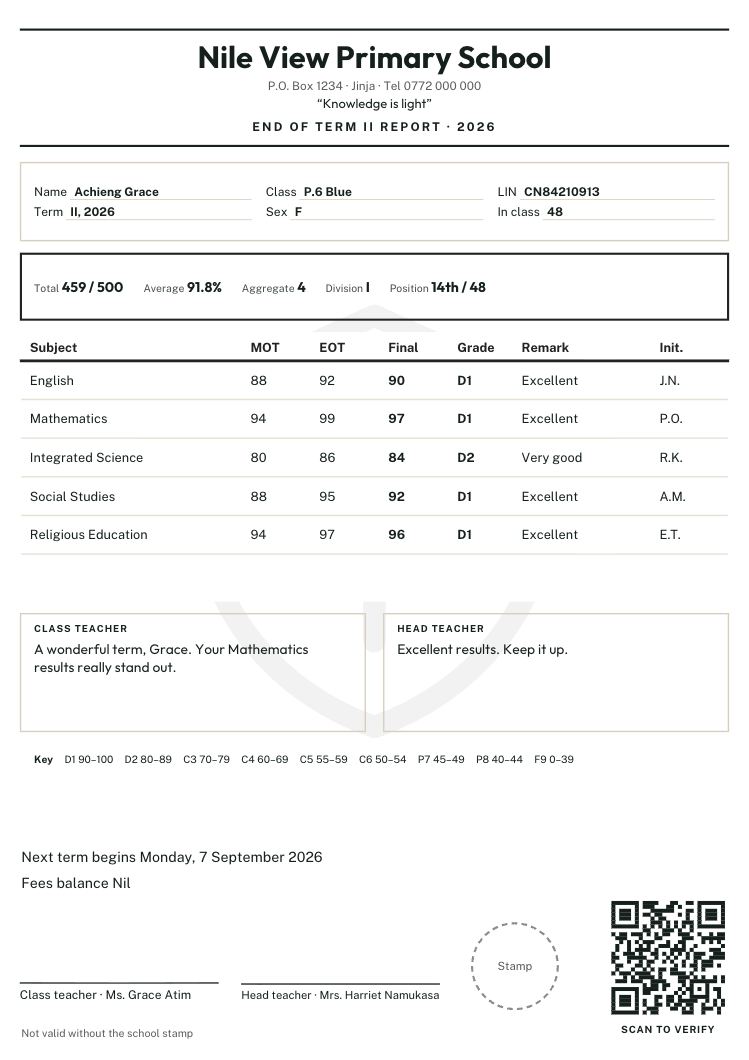
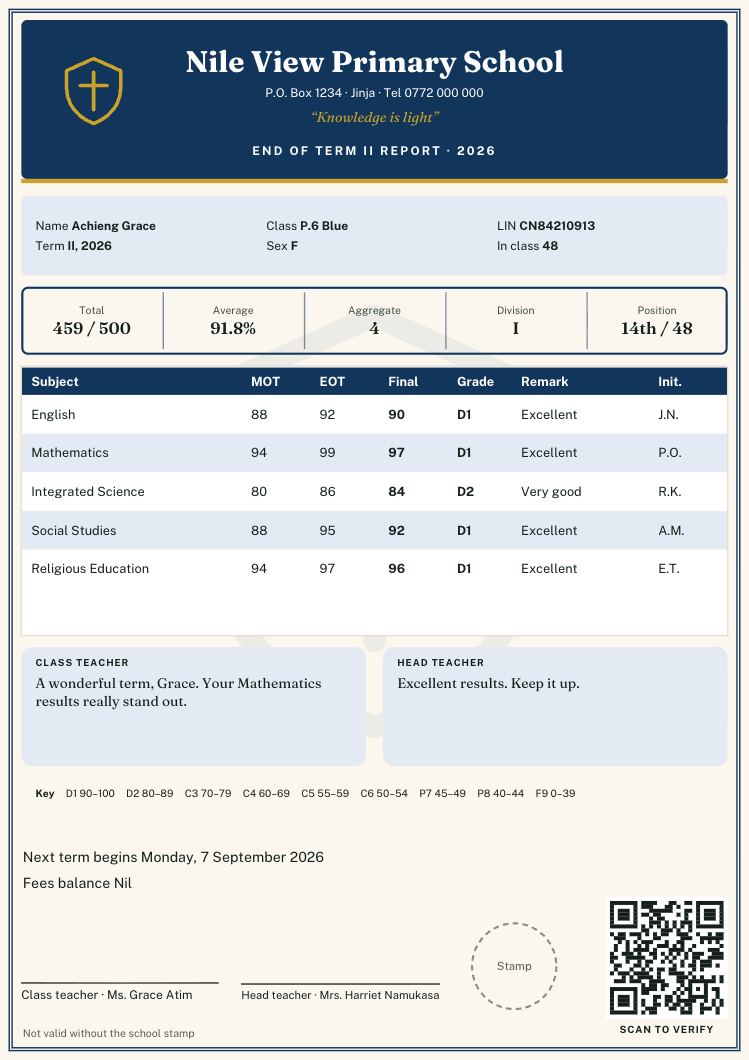
Test once, print the class
Report Card Studio starts every class print with a one-card test, offers 100%, 97% or 94% size, colour or black and white, and makes the whole class as one PDF ready for the printer.
Questions? Call or WhatsApp 0784 150 327, or email [email protected].